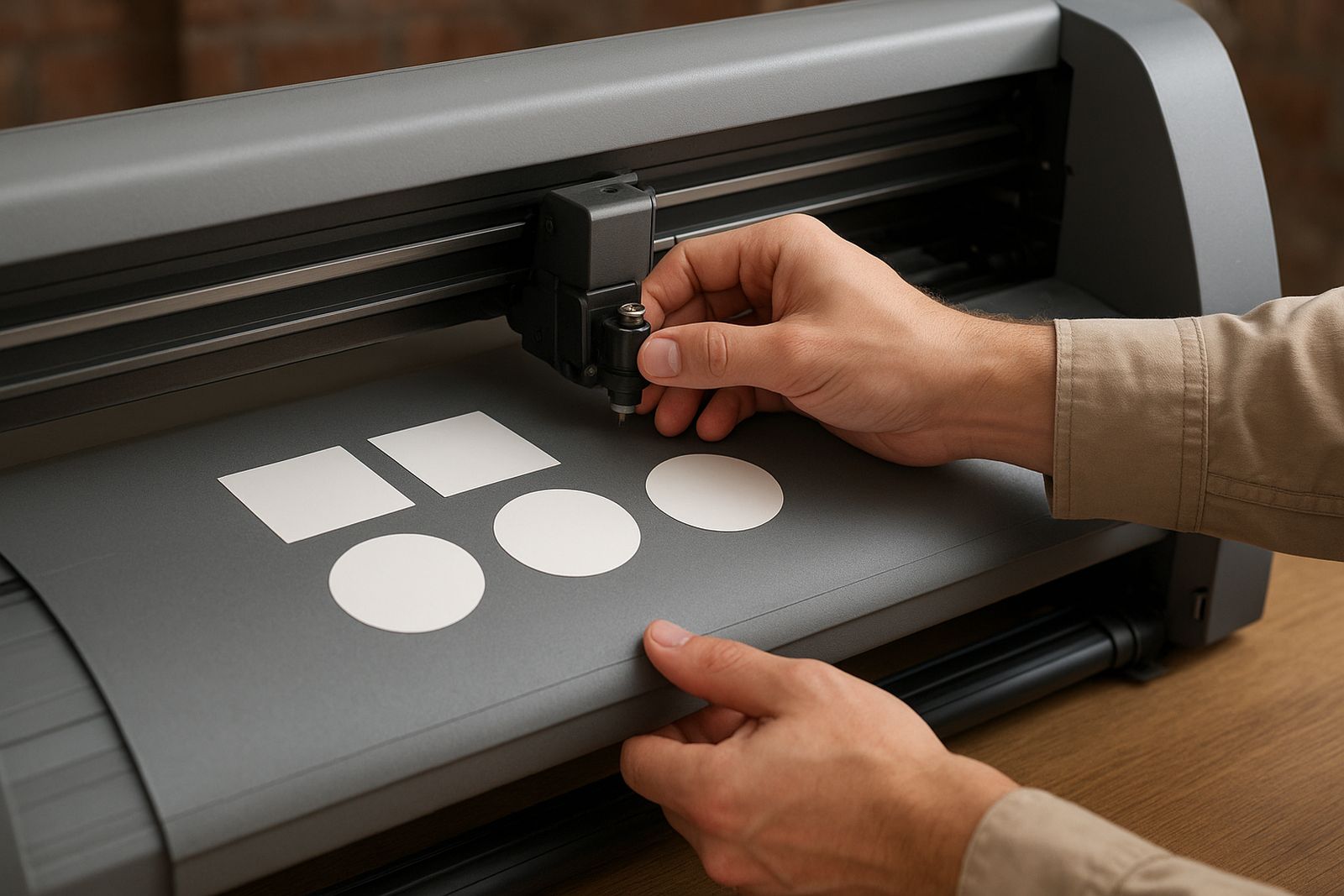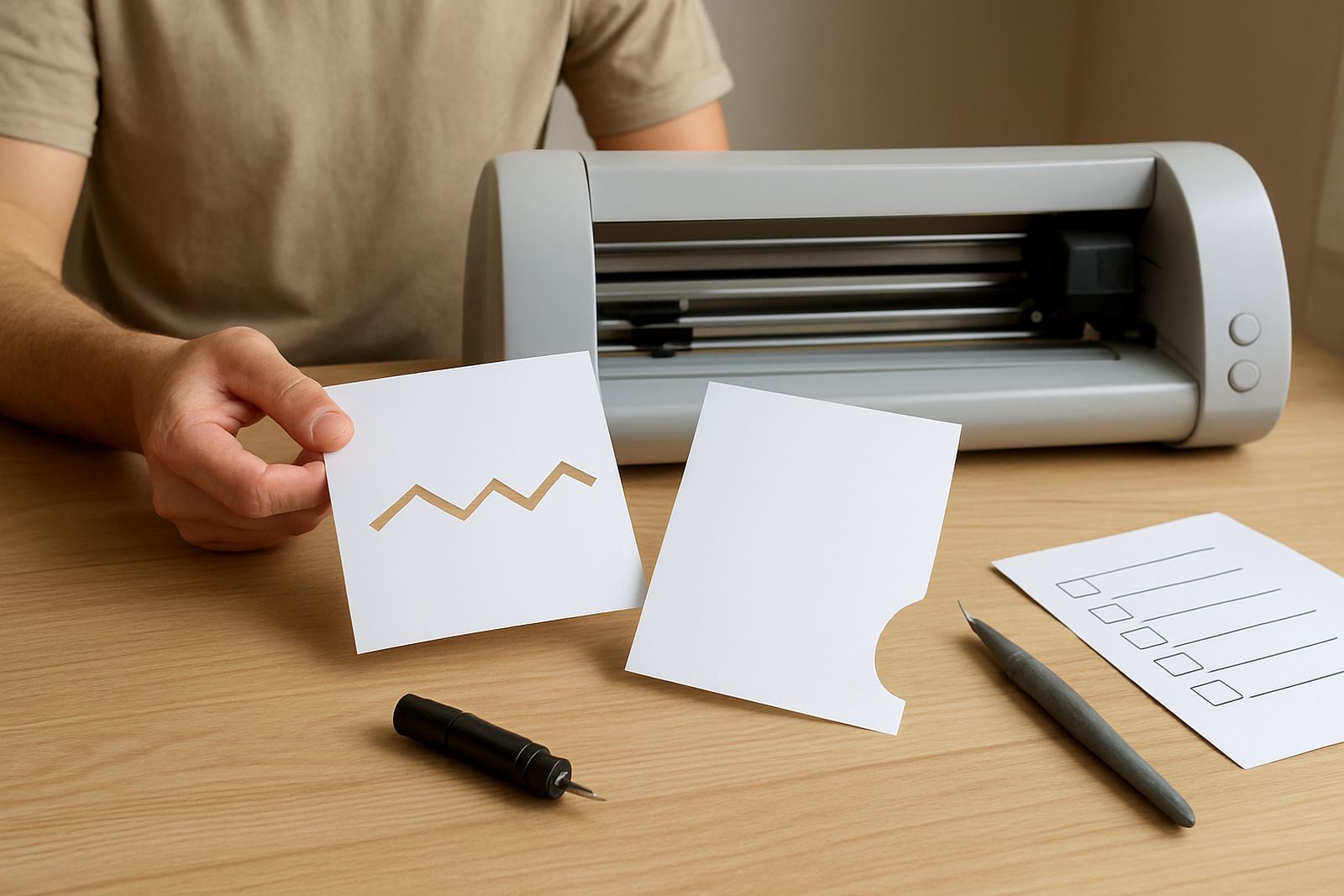

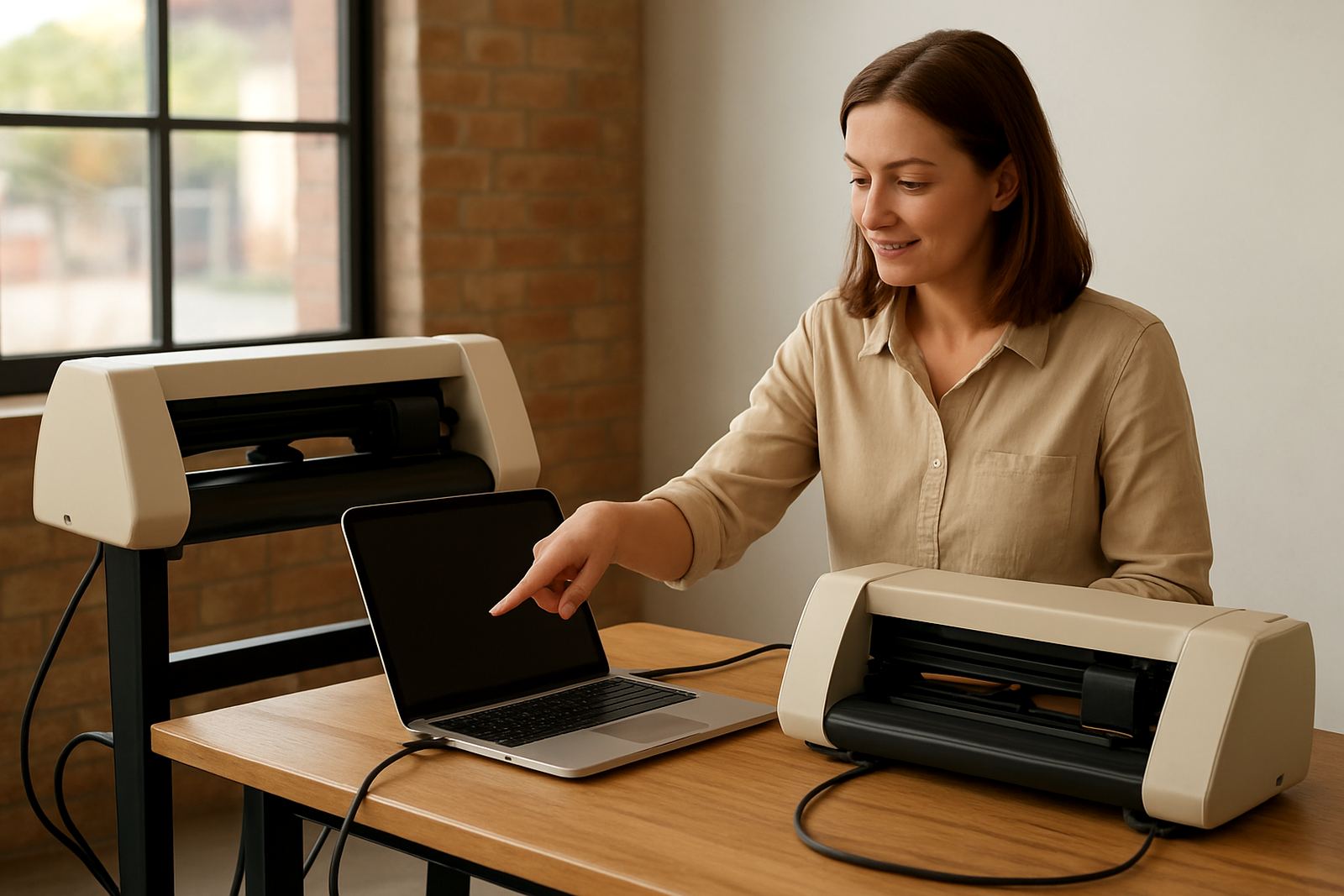
What Software Connection Help Covers
This service is for anyone who has a cutter on the table but is stuck at the computer side. We help with software installation checks, driver matching, USB connection issues, COM port settings where relevant, page size setup, cutter communication and basic workflow testing from artwork to cut file. If the machine powers up but the job will not send, or the cutter responds but the lines come out wrong, this is the right starting point.
We work with desktop craft cutters used for vinyl decals, heat transfer vinyl and small sign jobs. Most support is focused on Windows laptops and PCs, because that is where we see the most connection trouble, especially after updates, new cables or a fresh install. In many cases the issue is simple, like the wrong port selected or the cut software sending a job at the wrong size. In other cases there is a driver conflict, a file path issue or a spacing problem between design software and cutting software.
- Driver and software connection checks
- USB cable and port testing
- Cutting area and mat setup
- Job size, offset and blade setting review
- Workflow checks from design to output
Typical Problems We Fix During Setup
Many new owners assume the cutter itself is faulty when the real problem is in the software chain. A machine may be recognised by the computer but still fail to cut because the driver was installed in the wrong order, the file is too large for the page size, or the output setting is sending the job to the wrong device. We also see issues after load shedding, when a computer restarts mid-install and leaves the connection half-complete.
Our checks are practical and hands-on. We can help when the cutter shows no response, cuts random lines, repeats the same shape or drifts off registration on a simple job. For HTV work, we also check that the design is mirrored correctly and that the cut path is clean enough for weeding. If the job is feeding too long, stopping short or shifting by a few millimetres, we narrow it down step by step.
- Machine not detected by the computer
- Wrong driver or duplicate driver conflict
- Cut job sent but nothing happens
- Design opens but sends at the wrong scale
- Lines cut out of alignment or in the wrong direction
How the Support Session Works
We start by asking what machine model you have, which software you are using and what happens when you send a test cut. If you are visiting us in Kya Sand, we can check the unit on site with your laptop or a test computer. For customers in Randburg, Sandton, Midrand, Roodepoort, Pretoria East and other areas nationwide, we can often assist remotely if the issue is on the software side and the computer is available for the session.
During the session, we work through the connection in a fixed order: computer settings, driver install, cable test, cutter selection, page setup, and a controlled test cut. This keeps the fault-finding clean and avoids changing three things at once. If the issue turns out to be hardware related, we will tell you that clearly so you are not wasting time on software settings that wont solve it.
- Initial fault check and machine details
- Connection and driver review
- Test cut and output verification
- Final settings saved for future jobs
Turnaround Times and Booking Options
Simple software connection problems are often resolved in a single session, especially where the machine, cable and computer are all available for testing. More involved cases, like a fresh computer setup or repeated driver corruption after updates, may take longer because each change has to be checked before moving on. We aim to keep the turnaround practical and clear so you know whether you need a short call, a remote session or a walk-in check at our Johannesburg base.
Local walk-in support around Kya Sand is by appointment, and remote sessions are arranged according to the problem and the availability of your computer. If parts are needed, or if we find a damaged cable or old USB adapter, that adds time because the replacement must be tested before handover. During busy periods, especially after weekends or public holidays, allow a little extra time for booking. We prefer that over rushing and leaving you with a half-working setup.
Pricing Approach for Software Help
Software Connection Help is priced according to the work needed to find and fix the fault, not by guesswork. A straightforward driver or port issue is usually simpler and less costly than a full workflow rebuild involving software setup, test artwork and output correction. We quote after we understand the problem, because one cutter may need a brief fix while another needs a longer session with several restarts and test runs.
Where possible, we explain the likely cost before starting so there are no surprises. If the session needs to move from remote support to in-person testing, we say so upfront. For small businesses that cut daily, this approach helps avoid repeat downtime and keeps the machine earning instead of sitting idle.
- Quick connection faults charged as a short support session
- Deeper workflow setups quoted after assessment
- Replacement cables or parts quoted separately if needed
- Remote support available where suitable
Settings, Specs and Maintenance Intervals
To get reliable results, the computer and cutter need a few basic checks at regular intervals. We recommend reviewing the connection after any major operating system update, after moving the machine, or if the cutter has been unplugged for a while. In a workshop with dust, heat and frequent use, it is also worth checking the USB cable and port every few weeks. Coastal humidity can affect storage and connectors too, even if the machine is based inland.
For active users, a monthly workflow review is sensible. That includes a test cut, blade offset check, mat alignment and a quick look at the software output settings. If you cut only now and then, check before each project, especially after load shedding or if the computer was reset. A clean setup saves vinyl, time and frustration. Keep the machine on a stable table, allow space at the back for media feed, and avoid long unshielded cables where possible.
- Check software after OS updates or reinstallations
- Test USB connection and cut output monthly
- Inspect cables, ports and power stability after outages
- Store cutter and computer in a dry, dust-controlled area
Key facts
| Service area | Kya Sand, Johannesburg and nationwide support where suitable |
|---|---|
| Computer platform | Windows desktop and laptop setups |
| Connection types | USB cutter links and related driver communication |
| Typical session | Driver setup, port selection, page size and test cut |
| Turnaround | Same or next working day for many local bookings, depending on fault |
| Maintenance interval | Monthly for active users, and after updates or power interruptions |